
- Training
- Service
- Promotion
- Schedule
- Testing Center
- News
- Contact
8/14/2023


What do you do if you want to combine the data from multiple sheets into one sheet, stacking the data from each sheet?
There are many ways to stack data in Excel, but I do not recommend using Copy & Paste to do so because when data changes, you have to repeat the process all over again.
Instead, try VSTACK.
The V stands for Vertical, and it will vertically stack all of the data from the range(s) that you specify into one sheet.
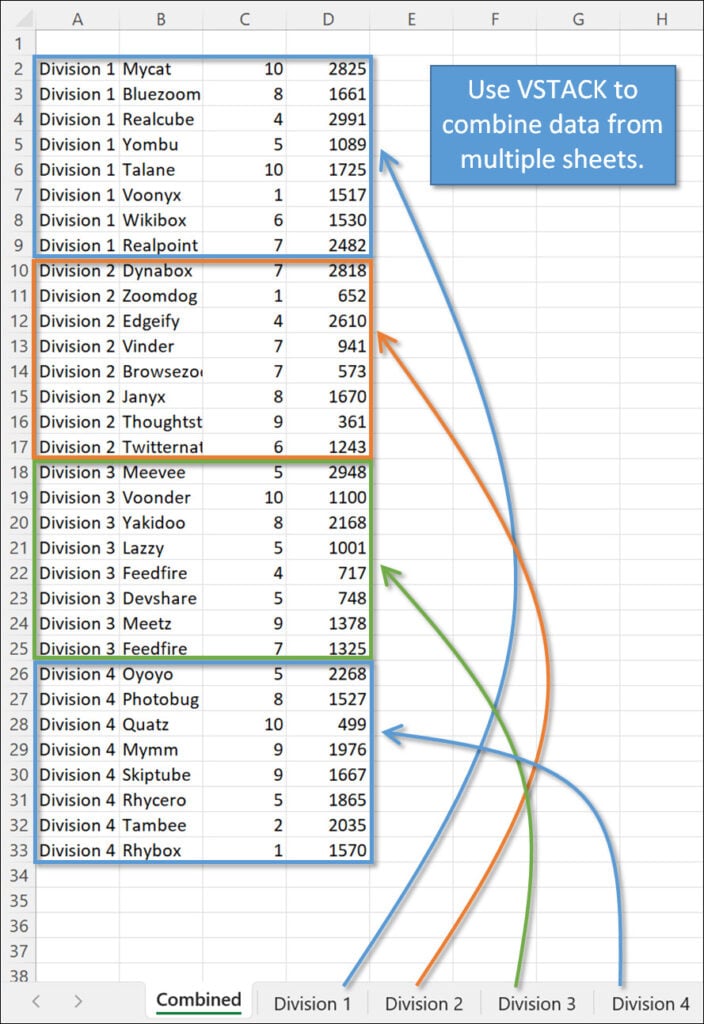
Using VSTACK to combine data from multiple sheets is easy!
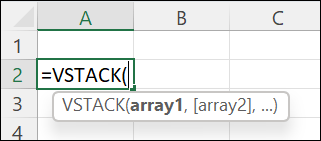
Start on a blank sheet in your workbook and type =VSTACK, then Tab into the formula. The only argument you need to specify is the array.
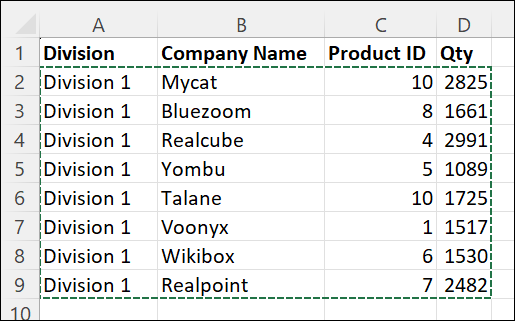
To pull data from multiple sheets, begin by selecting the data you want from the first sheet.
Then, while holding down Shift, select the last tab that contains data that you want to stack. In the example below, VSTACK will pull the data from Division 1 through Division 4 into the “” sheet.

Hit Enter. In an instant, the data from each of the four sheets will be stacked vertically in the order of the sheets you selected.
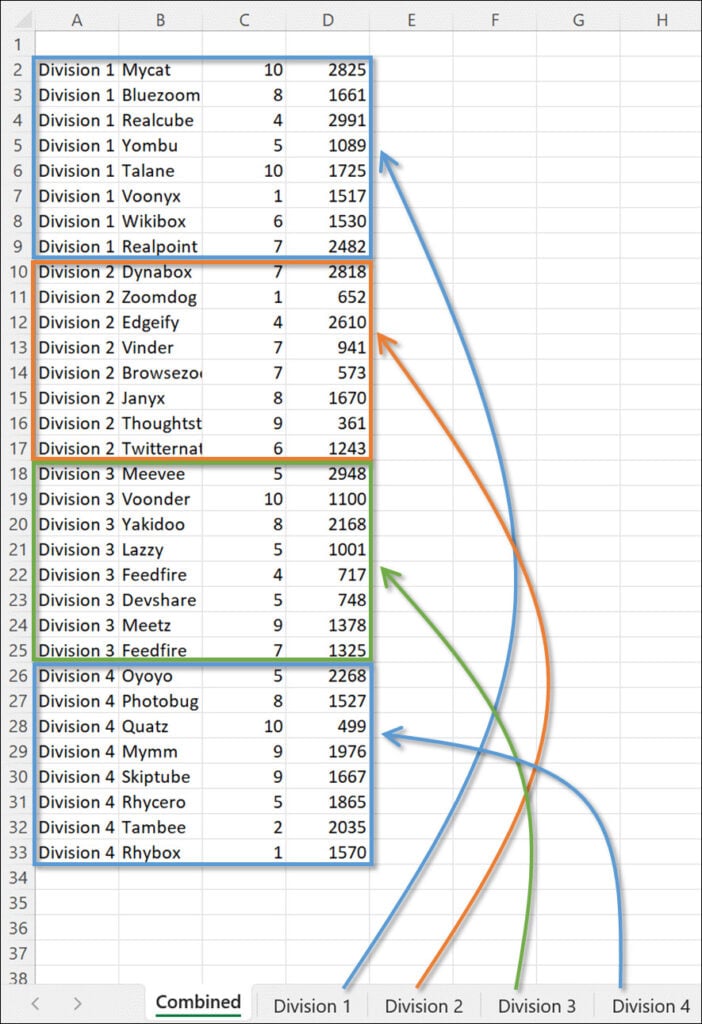
That's it! Now, when you change any entries on any of the sheets, the data will automatically change on the Combined sheet as well, thanks to the VSTACK Function.
Source: excelcampus.com

12/11/2025


